GoToMeeting - SAML My Page SSO Configuration - RSA Ready Implementation Guide
Originally Published: 2021-11-10
Last Modified: 2024-06-25
This article describes how to integrate GoToMeeting with RSA Cloud Authentication Service using My Page SSO.
Configure RSA Cloud Authentication Service
Perform these steps to configure RSA Cloud Authentication Service using My Page SSO.Procedure
- Sign in to the RSA Cloud Administration Console with administrator credentials.
- Enable SSO on the My Page portal by accessing the RSA Cloud Administration Console > Access > My Page > Single Sign-On (SSO). Ensure it is enabled and protected by two-factor authentication using a Password and Access Policy.
- On the Applications > Application Catalog page, click on Create From Template.
- On the Choose Connector Template page, click Select for SAML Direct.
- On the Basic Information page, enter a name for the configuration in the Name field and click Next Step.
- In the Connection Profile section, select IdP-initiated option.
- To provide Service Provider details, select Import Metadata, click the Choose File button, and select the file downloaded from the Service Provider.
Click the URL to download the Default logMeIn metadata file: https://authentication.logmeininc.com/saml/sp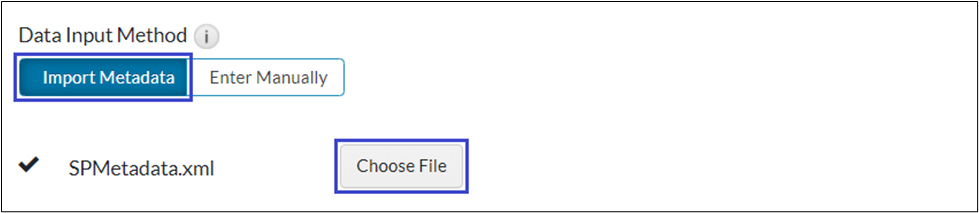
- Assertion Consumer Service (ACS) URL, Service Provider Entity ID and SP signs SAML requests values will be auto populated.
Replace the auto populated ACS URL with the GoToMeeting specific ACS URL: https://authentication.logmeininc.com/saml/global.gotomeeting.com/acs - In the SAML Response Protection section, select IdP signs assertion within response, and download the certificate by clicking Download Certificate.
- Under the User Identity section, select Show Advanced Configuration, then configure Identifier Type and Property as follows:
- Identifier Type: Auto Detect
- Property: Auto Detect
- Choose your desired Access Policy for this application and click Next Step > Save and Finish.
- On the My Applications page, click the Edit dropdown and select Export Metadata to download the metadata.
- Click Publish Changes to save your settings. After publishing, your application will be enabled for SSO.
Configure GoToMeeting
Perform these steps to configure GoToMeeting.Procedure
- Log in to GoToMeeting Goto Organization center: https://organization.logmeininc.com/
- From the Email domains tab, click Add a domain.
- In the Enter an email Domain field, enter the email domain for which you are enabling SSO in RSA platform and click Next.
- Complete the verification instructions and click Verify.
- On the Identity provider tab, select Upload SAML metadata file in the How would you like to configure your SAML IDP? drop-down list and upload the metadata file downloaded RSA.
- Click Save.
Return to GoToMeeting - RSA Ready Implementation Guide



