Certificate missing from the trusted root certificates during installation of RSA Authentication 7.4 Agent for Windows
Originally Published: 2019-05-03
Last Modified: 2023-11-30
Article Number
Applies To
RSA Product/Service Type: Authentication Agent for Windows
RSA Version/Condition: 7.4.x
Issue
While trying to install the RSA Authentication Agent 7.4 for Windows, the following error message displays:
Installation stopped. RSA Authentication agent needs a certificate missing from the trusted Root Certificates. Contact your administrator.
Cause
A Windows administrator must use the appropriate Microsoft root update mechanism to install the certificate in the Trusted Root CA store of the machine account.
When checking the certificates associated with the installation .msi file by going through the following steps:
- Right click on the .msi of the agent and select Properties > Digital Signatures > Details > View Certificate.
- Click on Certification Path tab. In the example shown here, the VeriSign Class 3 Public Primary Certification Authority - G5 is missing:
The following error is seen as well:
Resolution
The RSA Authentication Agent for Windows requires the trusted root certificate VeriSign Class 3 Public Primary Certification Authority - G5, Symantec Class 3 SHA256 Code signing CA - G2 and RSA Security LLC in the Trusted Root CA store of the machine account. Also, the trust must be set for the computer, not just an user account.
Workaround
- On the Windows OS, double-click on the signed certificate file. This will bring up the properties of the certificate.
- Click on the certification path. This will list the certificate chain that signed your certificate. Double-click on the top-most CA certificate (VeriSign Class 3 Public Primary Certification Authority - G5), which is the missing one in our case. This should open the properties of the root CA certificate.
- Click on the Details tab on the properties of the root CA certificate.
- Click the Copy to File button. This will bring up the Certificate Export Wizard.
- Click Next. You will be prompted to select the export file format.
- Choose base-64 encoded X.509 (.cer) and click Next.
- On the next screen, you will be prompted to select to location to save the exported root CA certificate.
- Send the missing certificate to the affected environment.
- Import the missing certificate to the windows server using the following steps:
-
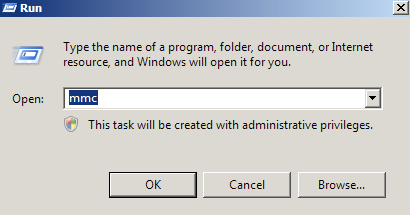
Click Start > Run > MMC.
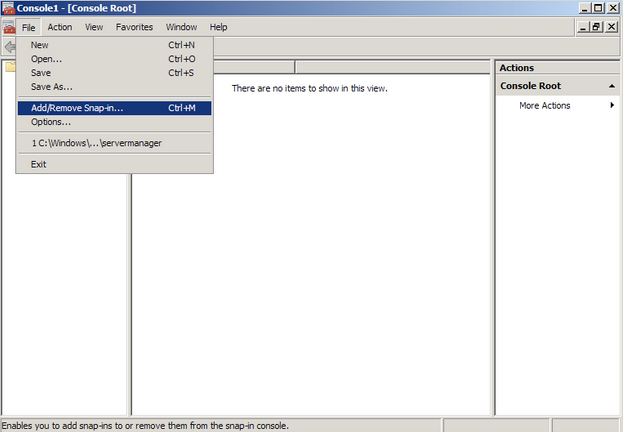
- Go into the Console tab and select File > Add/Remove Snap-in.
-
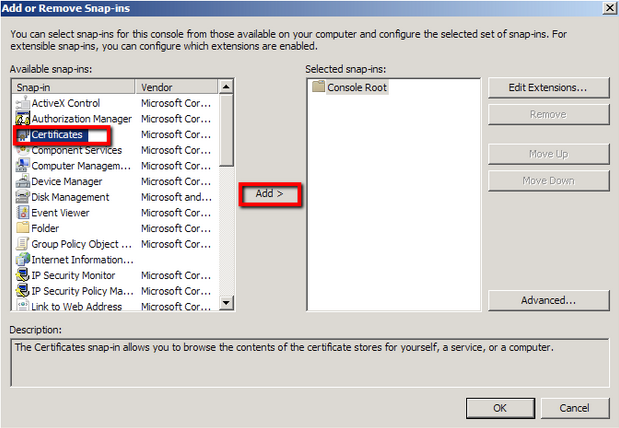
- Click on Add > Click on Certificates and click on Add.
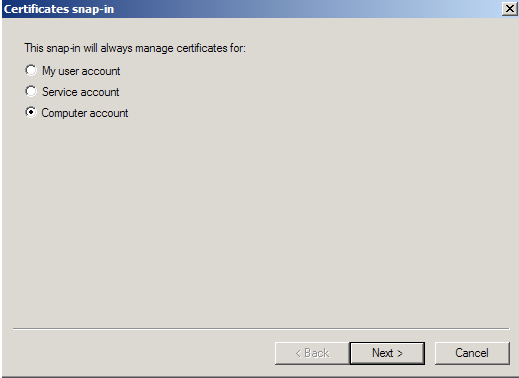
- Choose Computer Account > Next.
- Choose Local Computer > Finish.
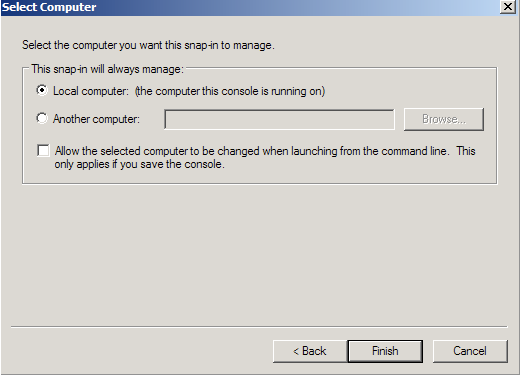
- Close the Add Standalone Snap-in window.
- Click on OK at the Add/Remove Snap-in window.
- You will be brought back into the management console where you will see your snap in where you can expand and right click the various folders or certificate so see options that are available to you.
- You have successfully created an MMC snap in on your windows system to troubleshoot certificates.
- Expand Trust Root Certification Authorities.
- Right Click Certificates.
- Go to All Tasks > Import.
- In the Certificate Import Wizard click Next.
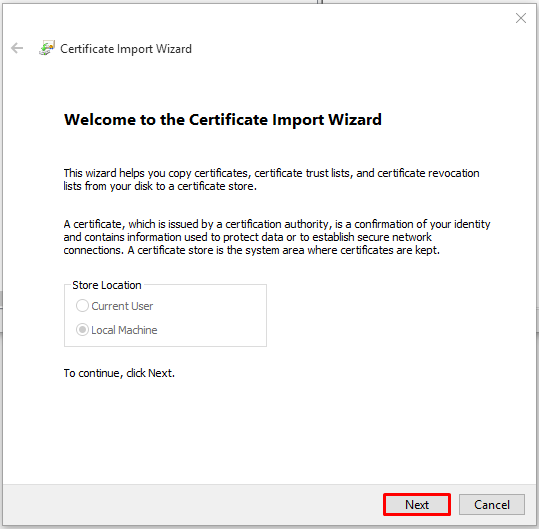
- Click Browse. Specify and open to the location and path of the missing certificate retrieved from your certificate authority.
- Click Next.
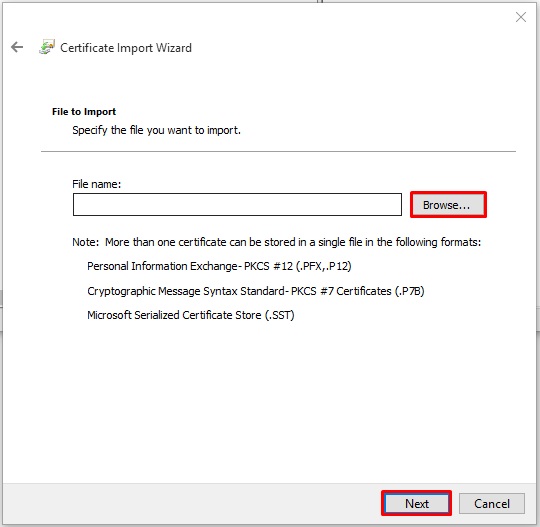
- Click Next.

- Click Finish.
- You should get a message stating that the import is successful and should now see the Root Certificate within your certificate store. is checked.
- Right click on the newly imported certificate and make sure that in the certificate properties screen Enable all purposes for this certificate is checked.
Finally, after all the above steps have been taken, check again that the certificates associated with the .msi file of the agent, the missing one will appear and the certificate will show as follows:
Now installation/update will run successfully.



