How to generate a report to list all users with a fixed passcode in Authentication Manager 8.x
Originally Published: 2014-11-06
Article Number
Applies To
RSA Product/Service Type: Authentication Manager
RSA Version/Condition: 8.x
Issue
Resolution
- Logon to the primary Authentication Manager's Security Console with an administrative account that has privileges to create and run reports.
- Navigate to Reporting > Reports > Add New.
- Select the All Users report template and click Next. For example:
- Enter a report name, such as All Users report - users with fixed passcodes.
- Select Yes to Has Fixed Passcode.
- Click Save.
- Left-click the report name and select Run Report Job Now.
- Click Run Report.
- The report is added to the job schedule:
- Click the Complete tab to access the completed report.
Depending on the number of rows in the report it may take a while for the report to complete.
.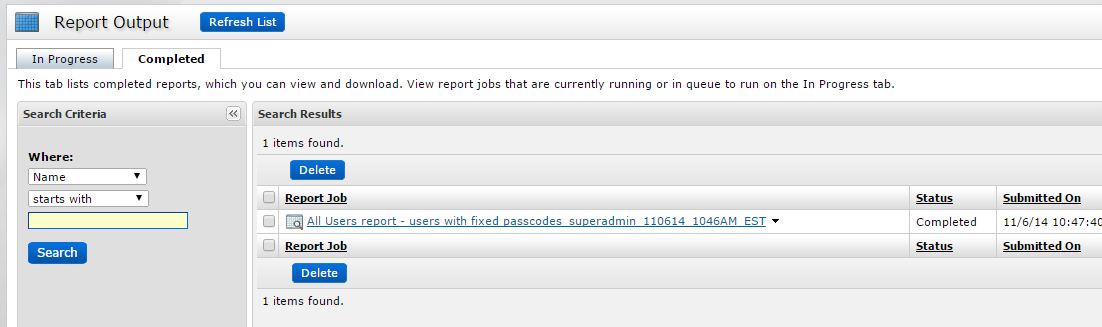
- Left-click the report name and select an option to either view the report in the browser or download the report in either CSV, XML or HTML format.



