How to replace an existing token in RSA Authentication Manager 8.x with a specific token and not with the Next Available Token
Originally Published: 2018-08-21
Last Modified: 2023-10-06
Article Number
Applies To
RSA Product/Service Type: Authentication Manager
RSA Version/Condition: 8.x
Issue
Resolution
Steps
- From the Security Console select Identity > Users > Manage Existing.
- Using the Identity Source filter on the left select either the internal database or to an external identity source and search for User1.
- When the search result is displayed, expand the content next to the user name by clicking the context arrow next to User1 and selecting SecurID Tokens.
- The page displays the token assigned to User1, which should be token 000xxxxxxxx1.
- Expand the content by clicking the context arrow next to the serial number and selecting Edit.
- The token serial number is listed under Token Basics. Copy the serial number of the token.
- Navigate to Authentication > SecurID Tokens > Manage Existing.
- Use the Serial Number filter and paste the token serial number copied above into the search field. then click Search.
- Place a check in the box next to token 000xxxxxxxx1.
- Change the menu option above the Serial Number and Token Type headings to Replace SecurID Tokens and click Go.
- From the page of unassigned tokens, choose one of the options by selecting the corresponding checkbox. Going by the requirement made above, it must be Token-n (in this screen shots below the token is 000xxxxxxxx2). Click Next.
- At this stage, User1 is assigned 000xxxxxxxx2 as a replacement for 000xxxxxxxx1.
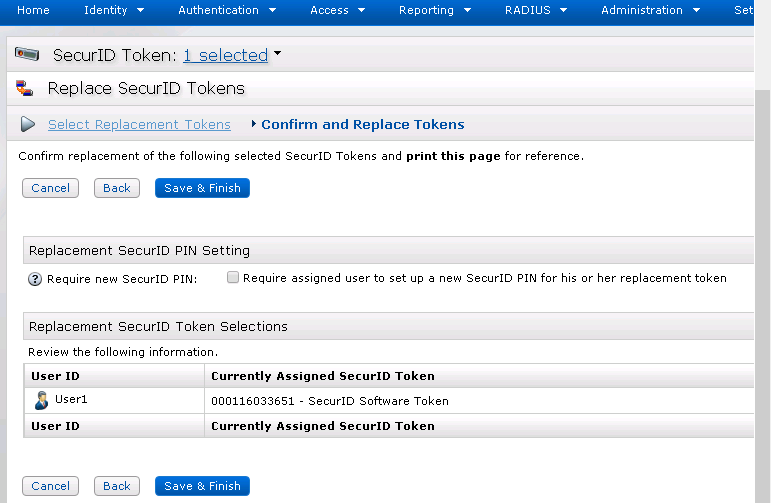
- On the net page, chose the option to either:
- To require a new PIN be created, click the option to require assigned user to set up a new SecurID PIN for his or her replacement token.
- To retain the user's current PIN, do nothing.
- Click Save and Finish.
- To confirm the token is assigned,
- Select Identity > Users > Manage Existing and search for User1.
- When the search result is displayed, expand the content next to User1 by clicking the context arrow next to User1 and selecting SecurID Tokens. You will see Token 1 and Token 2 are both assigned.
Token 2 will replace Token 1 after Token 2 is distributed by the RSA admin. Once distributed, the end user will no longer be able to use Token1 to authenticate.
Notes



