How users can generate a temporary emergency access tokencode from RSA Authentication Manager 8.x Self-Service Console
Originally Published: 2018-09-21
Last Modified: 2026-01-14
Article Number
Applies To
RSA Product/Service Type: Authentication Manager
RSA Version/Condition: 8.x
Issue
This article explains how users can generate a temporary emergency access tokencode from the RSA Authentication Manager Self-Service Console without contacting their RSA help desk.
This is useful if the end-user has misplaced their token or forgotten to carry their assigned token to their workplace.
Tasks
Configure Self-Service Settings
- From the Security Console, click Setup > Self-Service Settings.
- On the Settings page, select Customization.
- Click Enable or Disable Self-Service Features.
- Enable the following options:
- For Provisioning, enable provisioning features.
- For Log On Section, enable Display Log on Section.
- For Troubleshooting Links, enable Display Troubleshooting links.
- For Set Display Options for Troubleshooting, enable Display Token is temporarily unavailable for misplaced option.
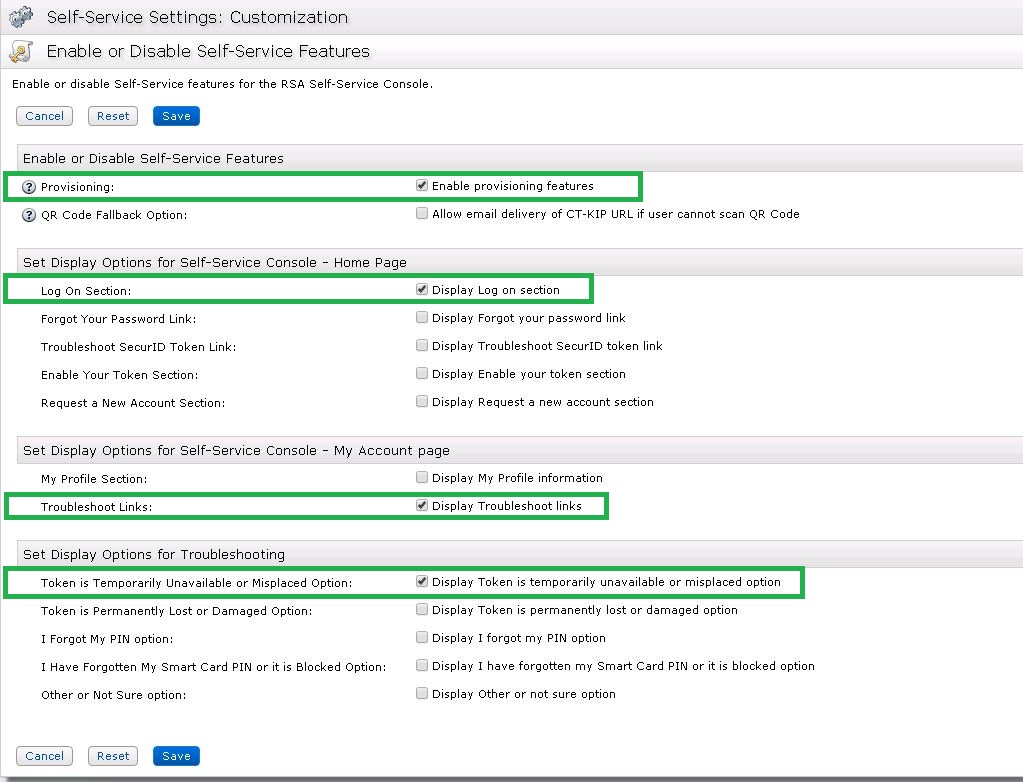
- Click Save.
- In the Security Console, click Setup > Self-Service Settings.
- Select Manage Authenticators.
- In the Emergency Access Tokencode Settings section, select Allow user to place token in emergency access mode.
- In the Emergency Access Tokencode Settings for Temporarily Unavailable Tokens section, use the Emergency Access Tokencode Lifetime fields to enter the length of time you want emergency access tokencodes to remain active.
- When done, click Save.
Resolution
- Login to the Self-Service Console.
- Click Troubleshoot.
- Select the option that the token is temporarily unavailable or misplaced.
- Click OK.
- An emergency access tokencode is generated for the user.
- The user can now use the emergency access tokencode to authenticate. Use the Test Log On button to confirm.
Notes
- The emergency access tokencode can be used more than once if the emergency access tokencode settings are set to Temporary Fixed tokencode (TFT); however a set of On time tokencodes (OTT) is valid once.
- If you have a SecurID PIN, log on with your PIN + the emergency access tokencode.
- If you do not have a SecurID PIN: Use only the emergency access tokencode.



